Android guide
How to Download YouTube Videos on Android
Use GrabnWatch Android app to download available YouTube videos. YouTube downloads do not work in the web version. Start on GrabnWatch.com, then open the result in GrabnWatch app. GrabnWatch checks the link and shows available download options.
Get GrabnWatch for Android
Install the latest GrabnWatch app. Some YouTube videos may not work.
Latest version: 5.4.0 Build 55
Download from Android
-
Send the result to GrabnWatch
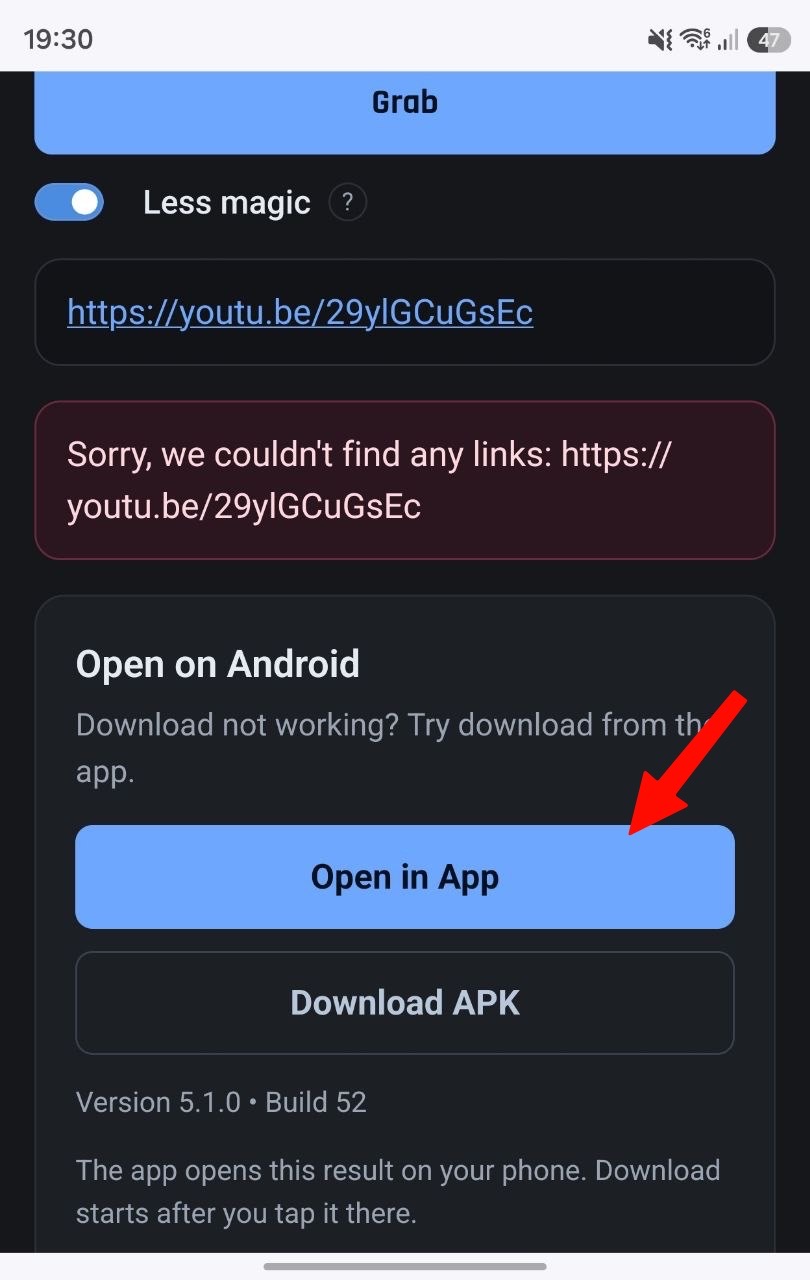
Open YouTube Video Downloader for Android on your Android phone. Paste the YouTube video URL and tap Grab. Then tap Open in App.
-
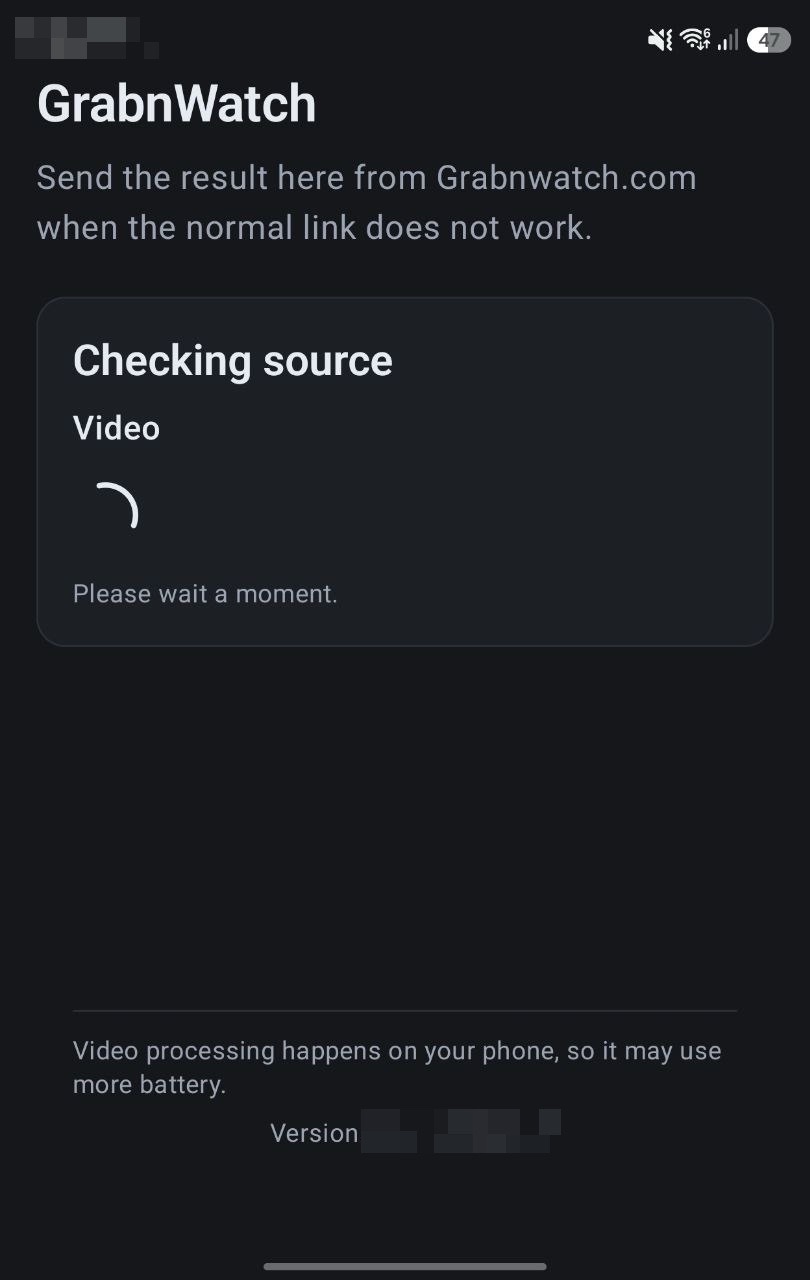
Wait while GrabnWatch checks the source
GrabnWatch shows Checking source. Wait until it is ready.
This may appear
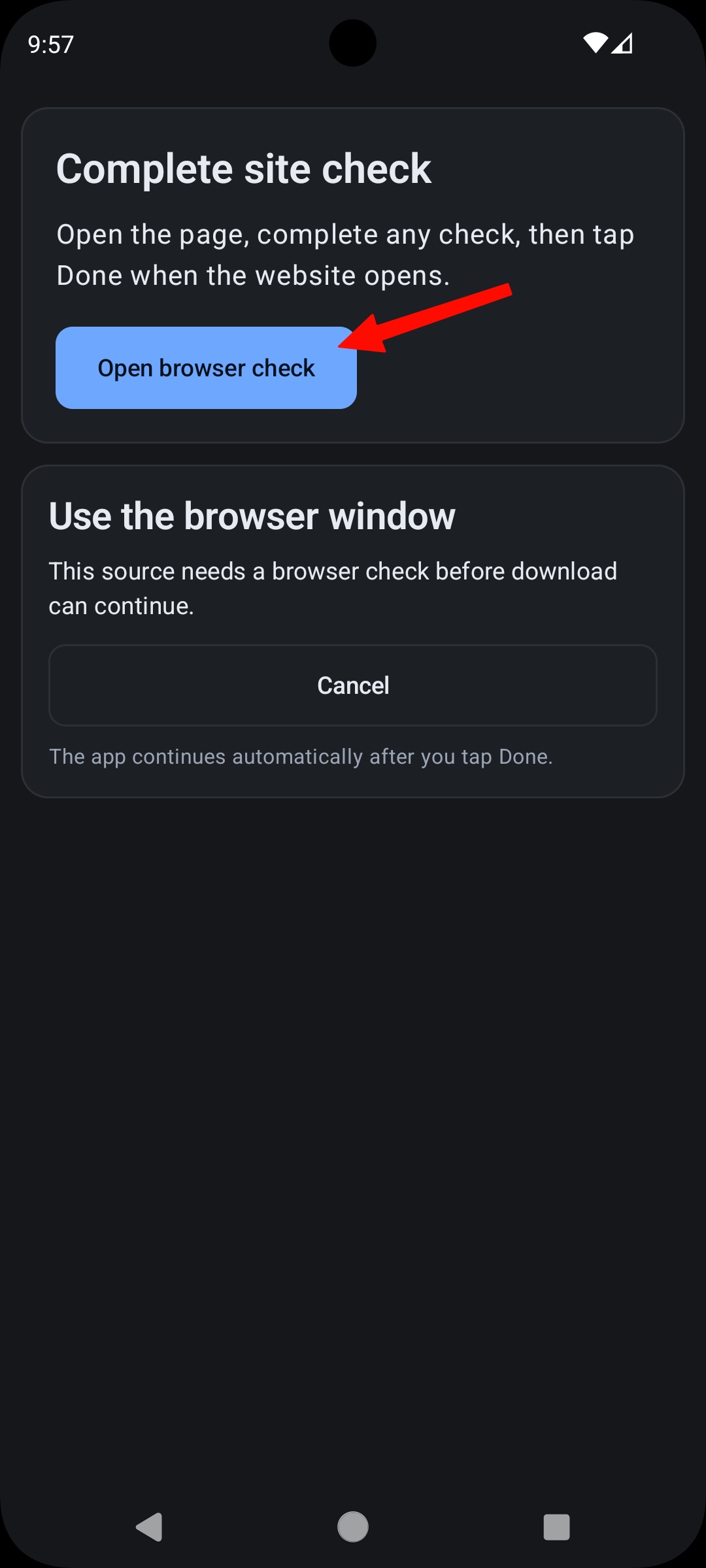
Complete site check
Tap Open browser check. YouTube opens in your browser. If YouTube asks you to sign in, sign in. GrabnWatch cannot continue without it. Then start the video and tap Done.
-
Choose a video and download it
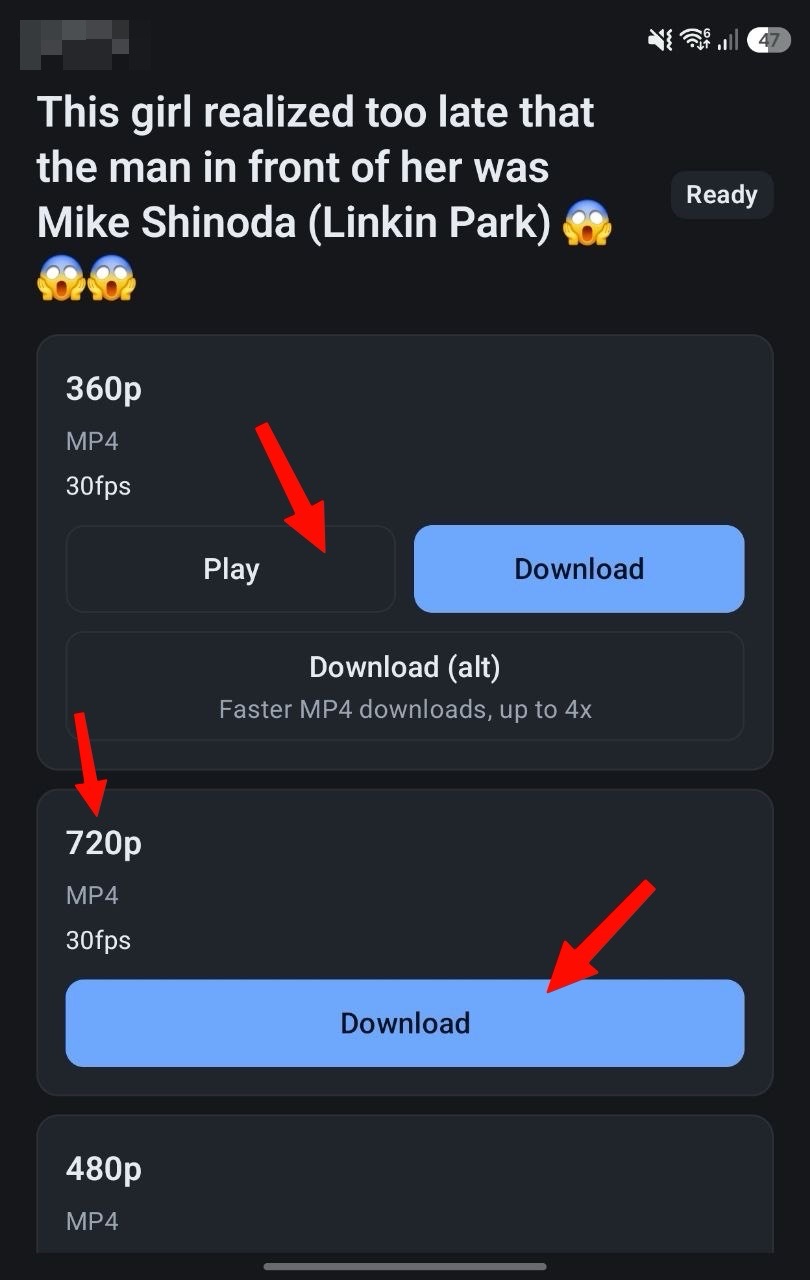
When you see Ready, choose a video quality. Tap Play to check the video. Tap Download to save it. You can also try Download (alt).
-
Follow download progress
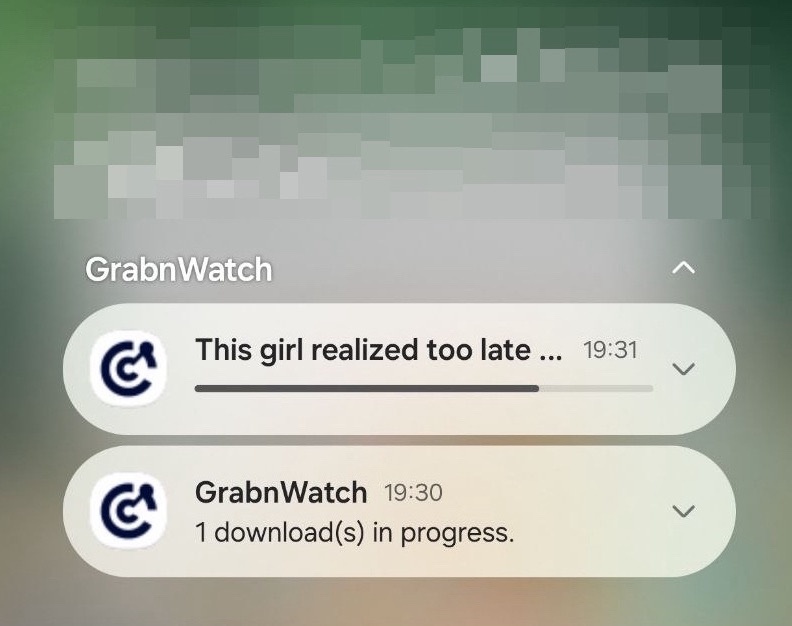
GrabnWatch shows download progress in a notification.
-
Wait for the saved message
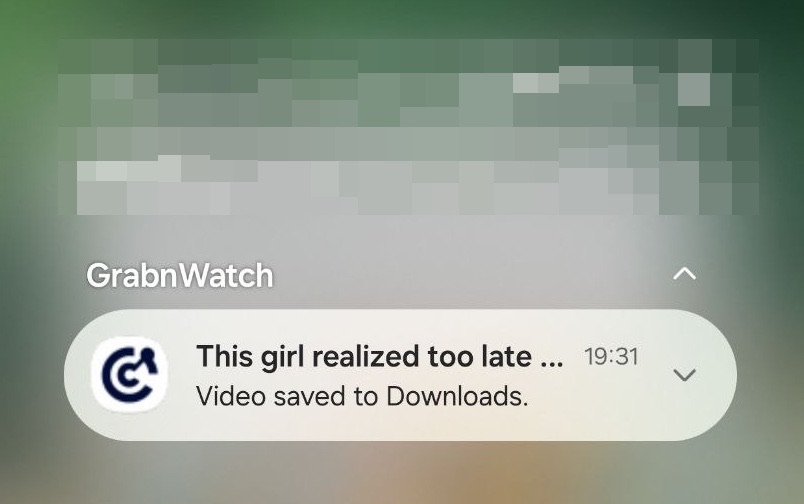
Wait for the message Video saved to Downloads.
-
Find the video in Downloads
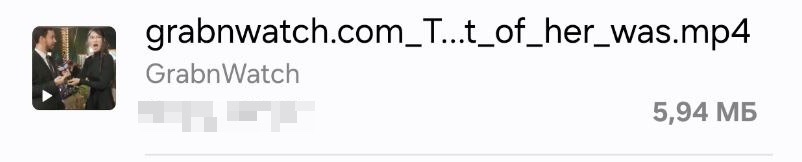
Open the Downloads folder on your phone. Your MP4 file is there.
If no download is available
Install the latest GrabnWatch version or try another video. Some videos may not work. Download only videos you can legally save.