Android help
How to continue when GrabnWatch finds no video links
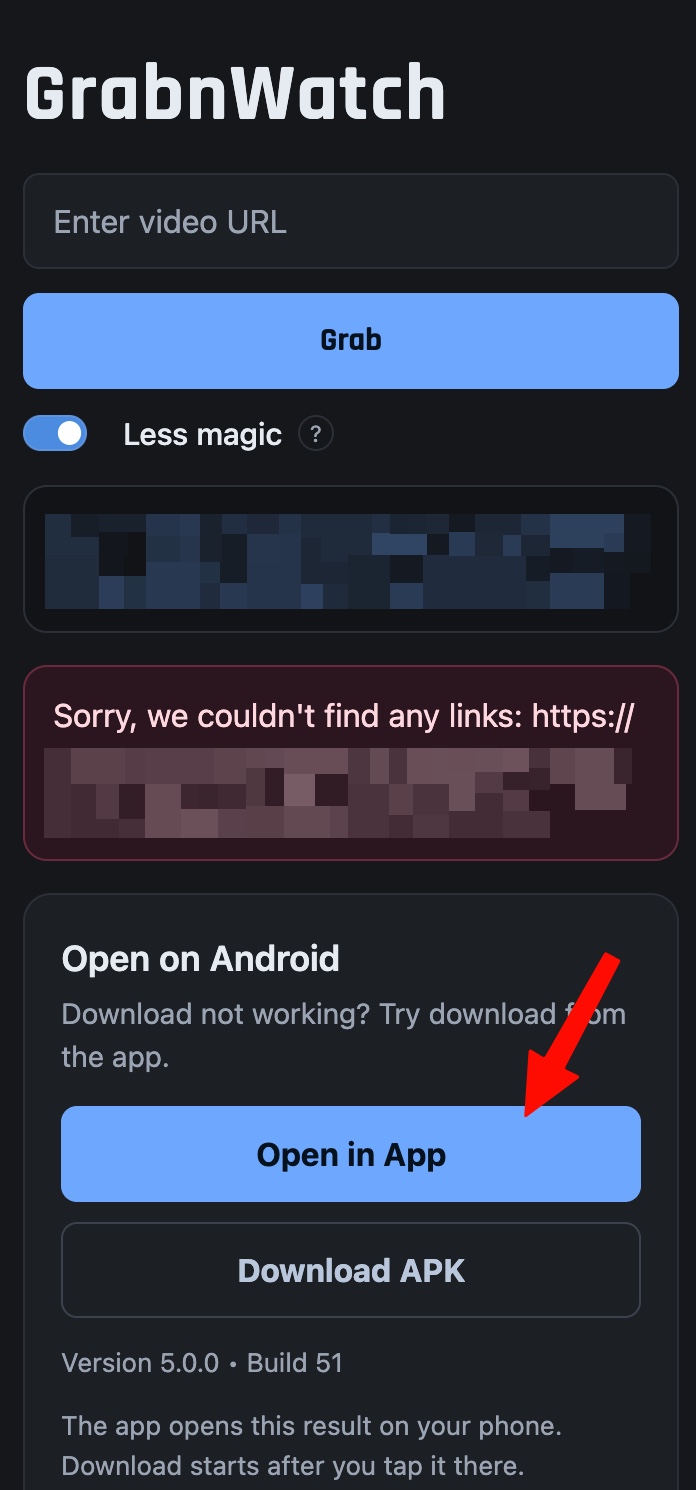
Use this guide when GrabnWatch shows “Sorry, we couldn't find any links” and an Open in App button. The Android app can open the website and try to find the video again.
Android is required
This guide works only on Android. Open GrabnWatch.com on an Android phone or tablet.
Open in App is not shown on desktop or iPhone. It appears only for results that can be sent to the Android app.
Use the latest app version
Check the version and build number at the bottom of the app. If yours is older than the version shown here, install the latest APK.
Latest version: 5.4.0 Build 55
Continue in the Android app
-
Open the result in the app
Open GrabnWatch.com on your Android device. Paste the video page URL and tap Grab.
If no links are found and Open in App appears, tap it.
-
Open the video page
The app may show one of these options. Use the option shown on your screen.
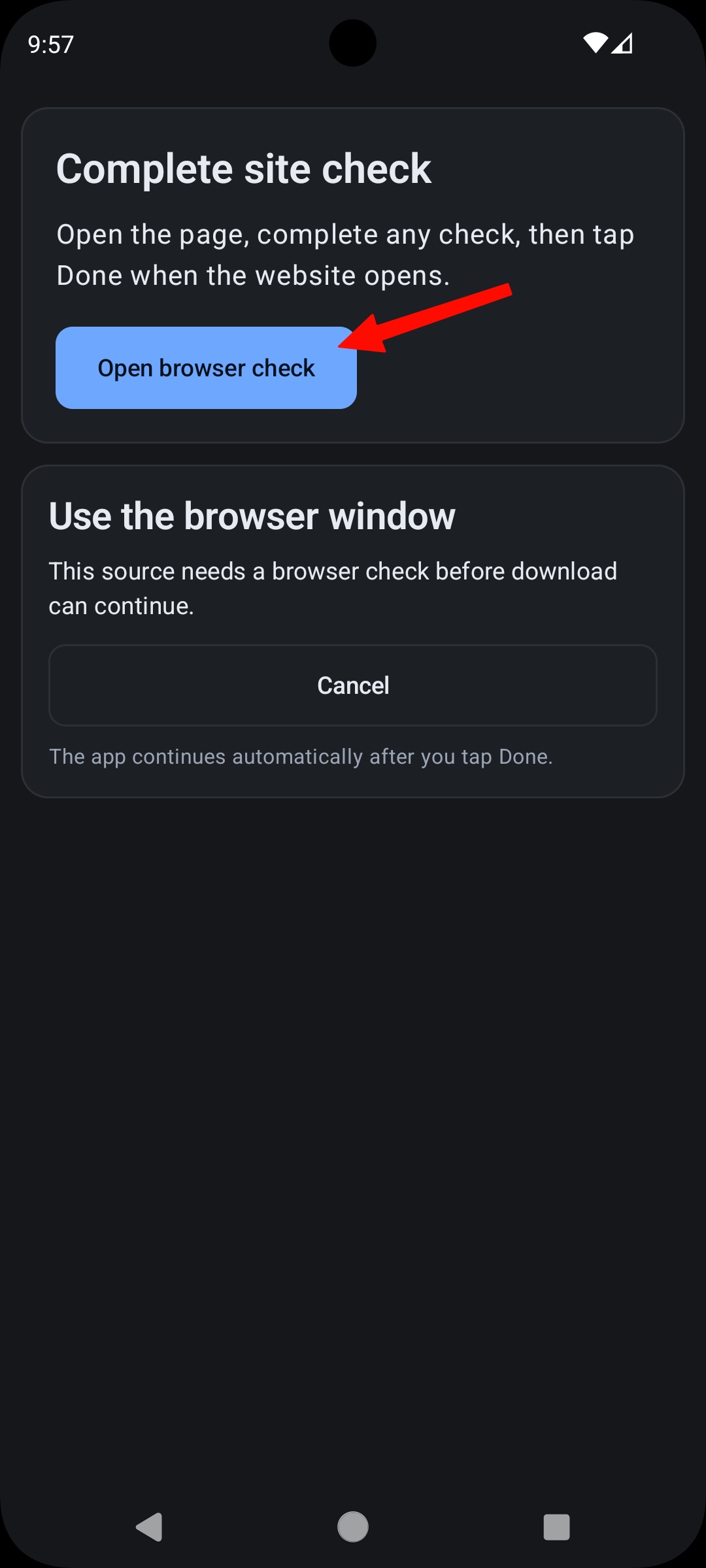
Complete site check
Tap Open browser check.
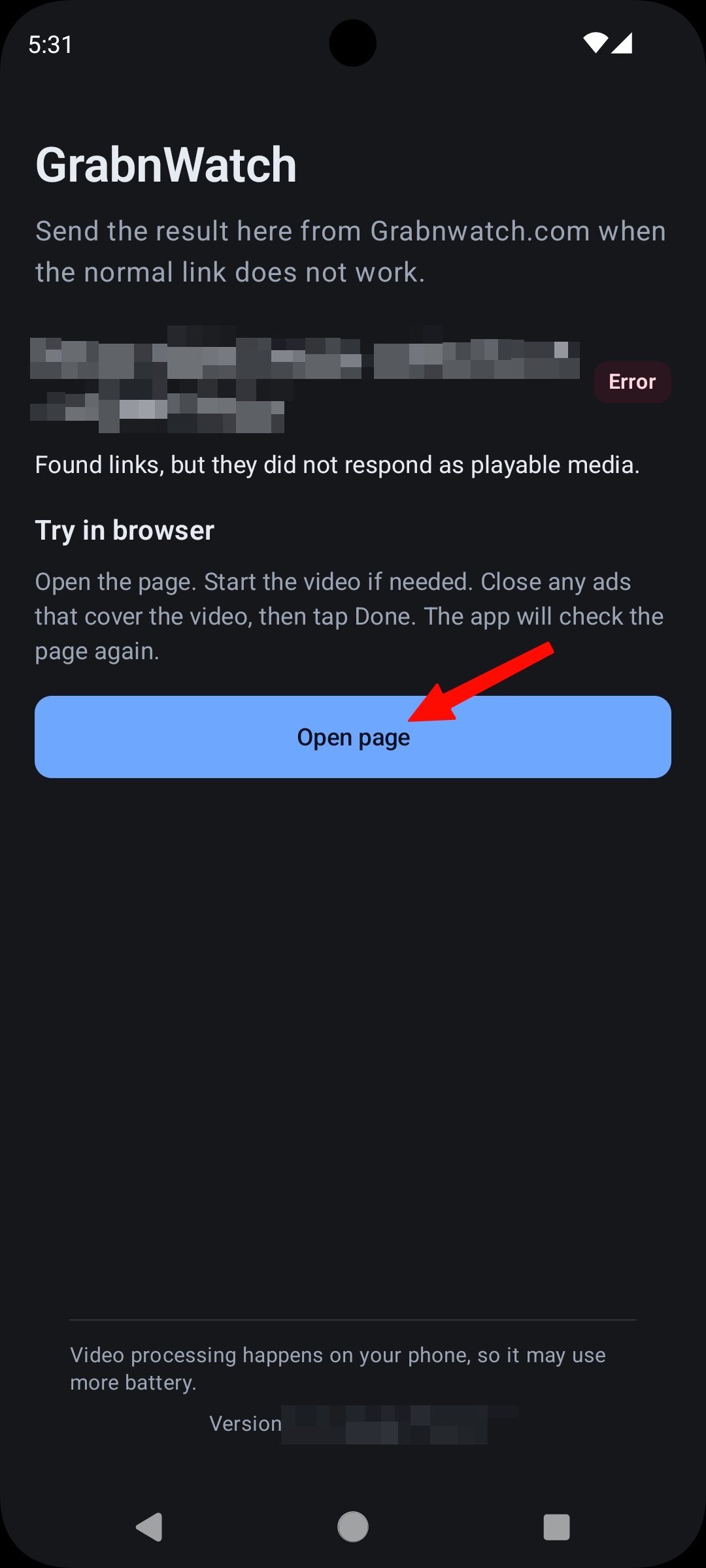
Try in browser
Tap Open page.
-
Complete a website check if shown
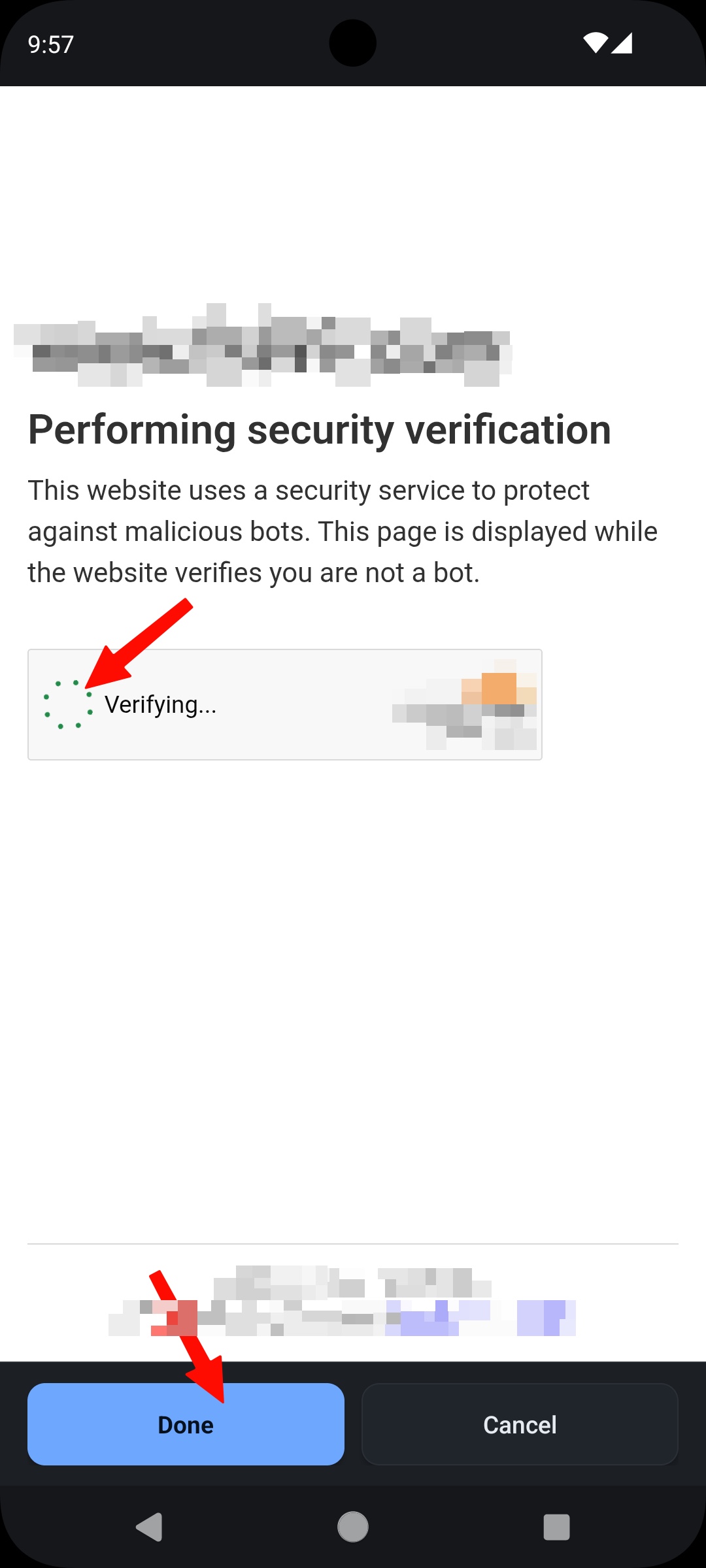
If the app shows a website check, complete it. Wait until the website opens.
Do not tap Done while the check is still running.
-
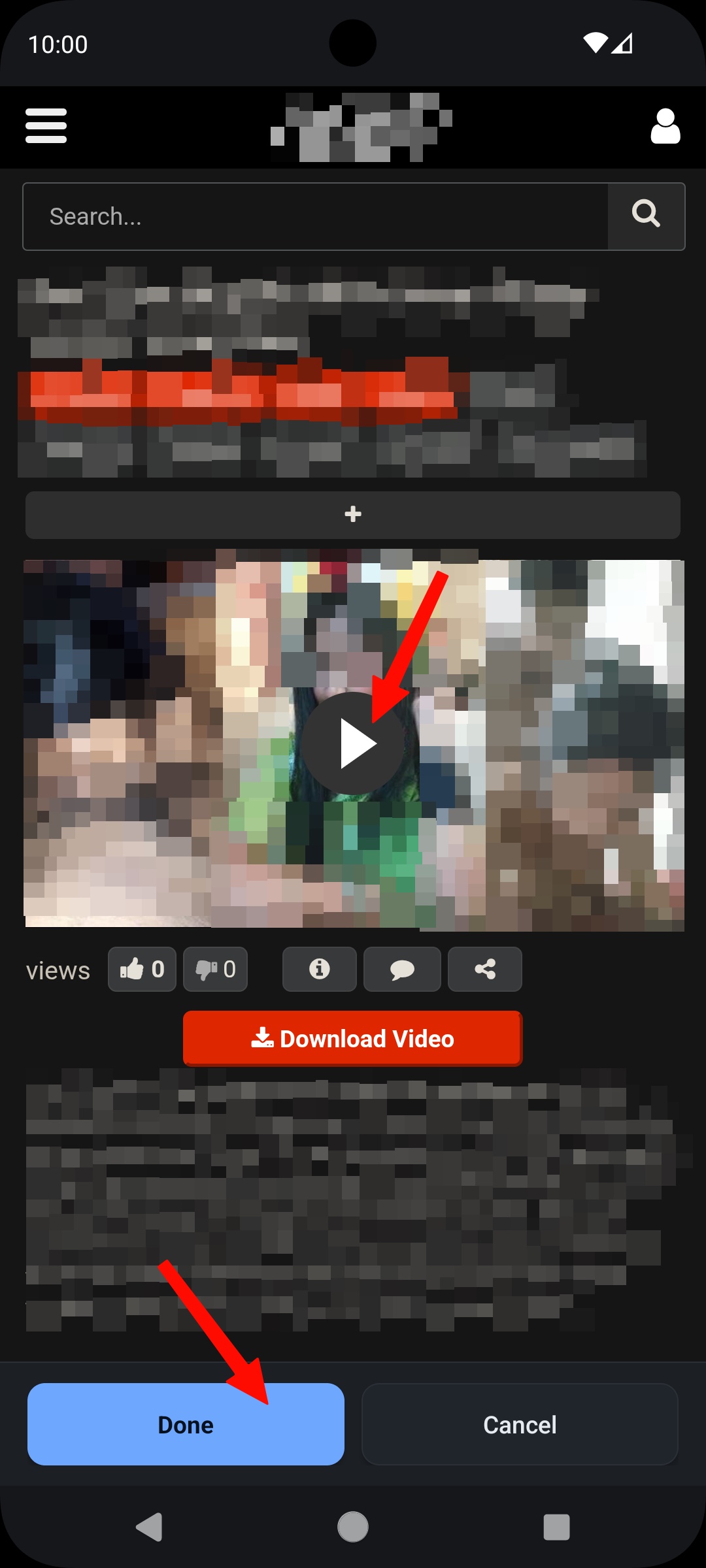
Start the video when needed
If the page contains a video, start playback once. On some websites, the app can find the video only after playback starts.
This is not required for every website. When the page is ready, tap Done.
-
Download in the app
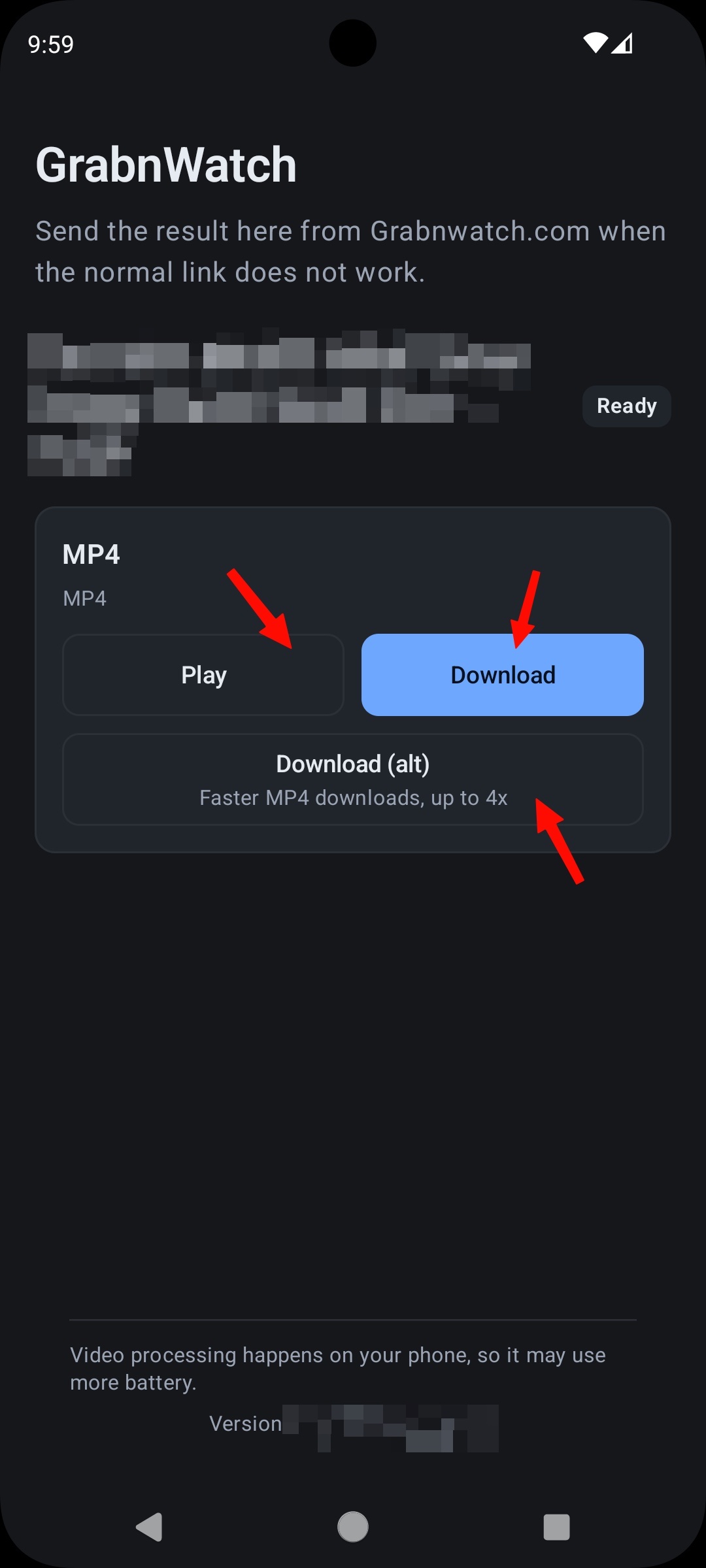
The app continues automatically after you tap Done.
Tap Download to save the video. Use Play to check the result first. If the normal download does not work, try Download (alt).
If no media is found
Open the video page again. Wait for it to load, start playback if possible, then tap Done.
Some websites and videos may not work with the app.