M3U8 to MP4 guide
How to convert M3U8 (HLS) to MP4
An M3U8 file is a playlist used for HLS video streams. On Android, use the GrabnWatch app to save the video. On desktop, use a ready command or VLC to save the playlist as an MP4 file.
Download with a command
GrabnWatch creates ready-to-use yt-dlp and ffmpeg commands for each video quality.
Learn how to copy and run a download command.Download with VLC
Install the free VLC media player before you start. These steps work on Windows and macOS. Screenshots show macOS; some VLC menu names look slightly different on Windows.
Before you start
- On your GrabnWatch result, click the play icon next to the stream quality. This downloads a small .m3u8 playlist file.
- In VLC, open Playback. If Repeat One has a check mark, click it once to turn it off.
Repeat One must be off. If it is on, VLC will convert the video in a loop.
Save the video on desktop
-
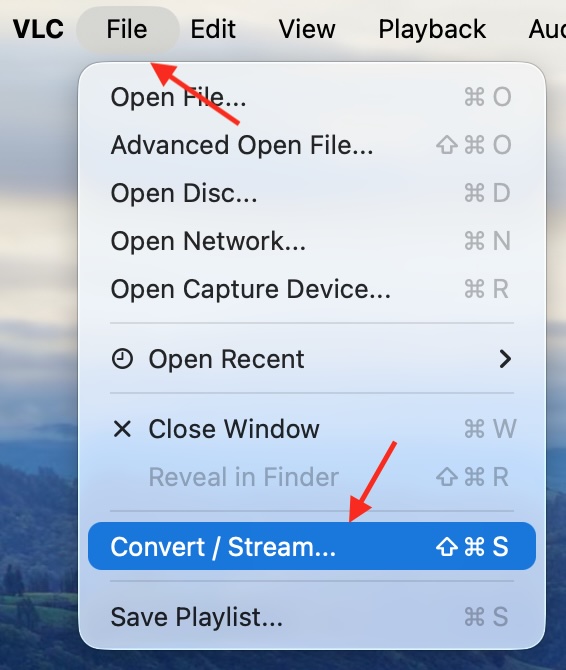
Open VLC. On macOS, click File, then Convert / Stream... On Windows, click Media, then Convert / Save...
-
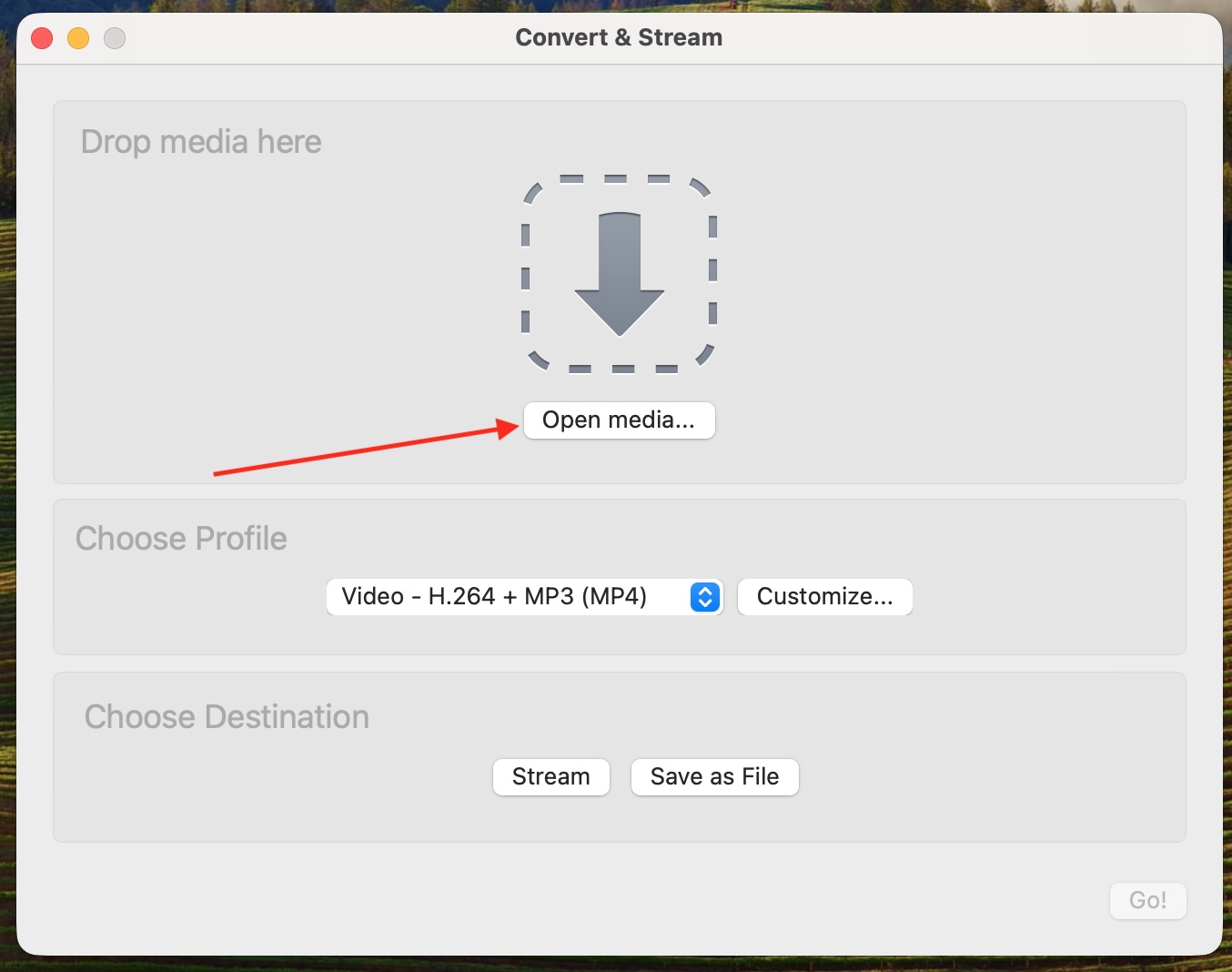
Click Open media...
-
Choose the .m3u8 file that you downloaded from GrabnWatch.

-
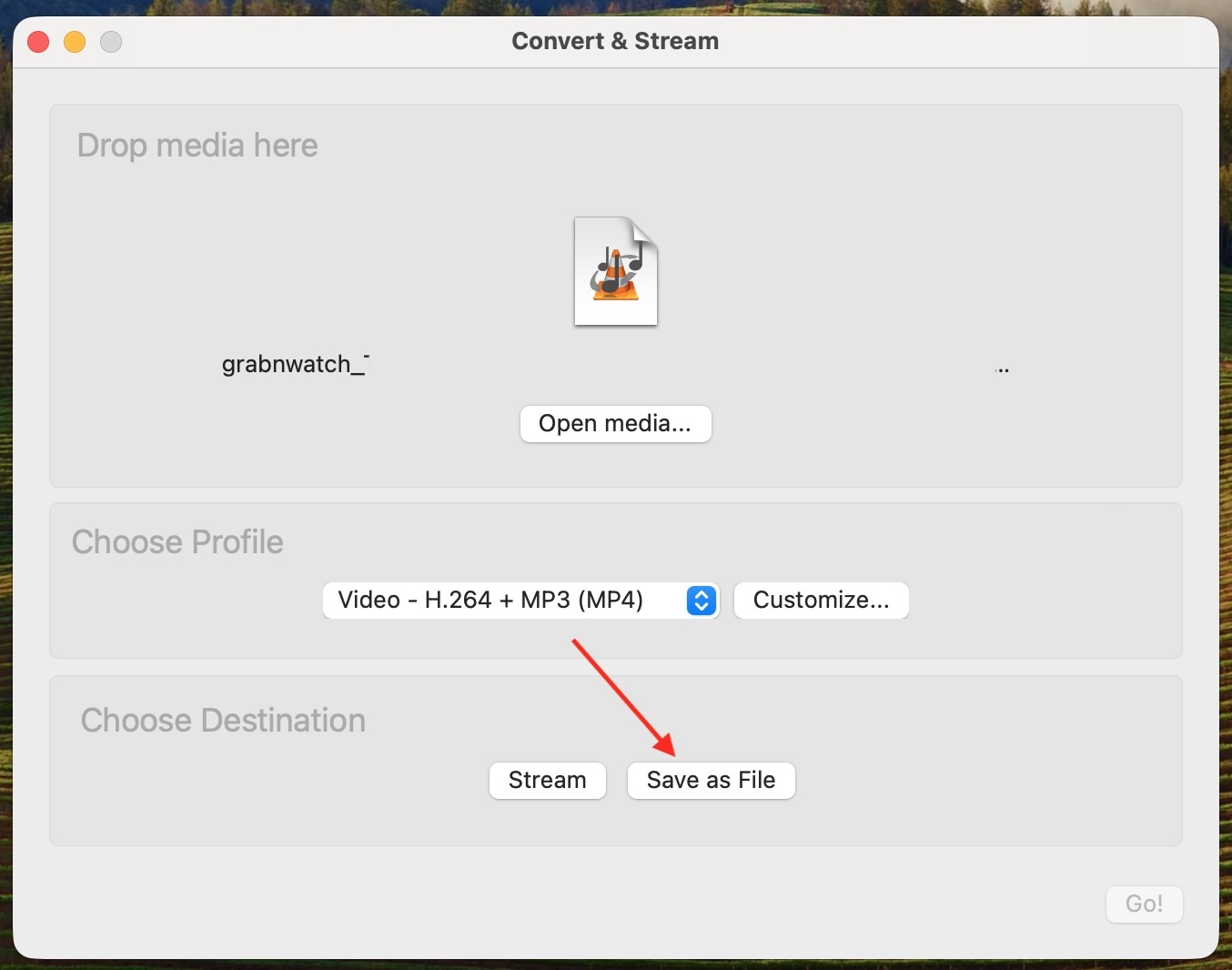
Keep Video - H.264 + MP3 (MP4) selected. Click Save as File.
-
Click Browse...
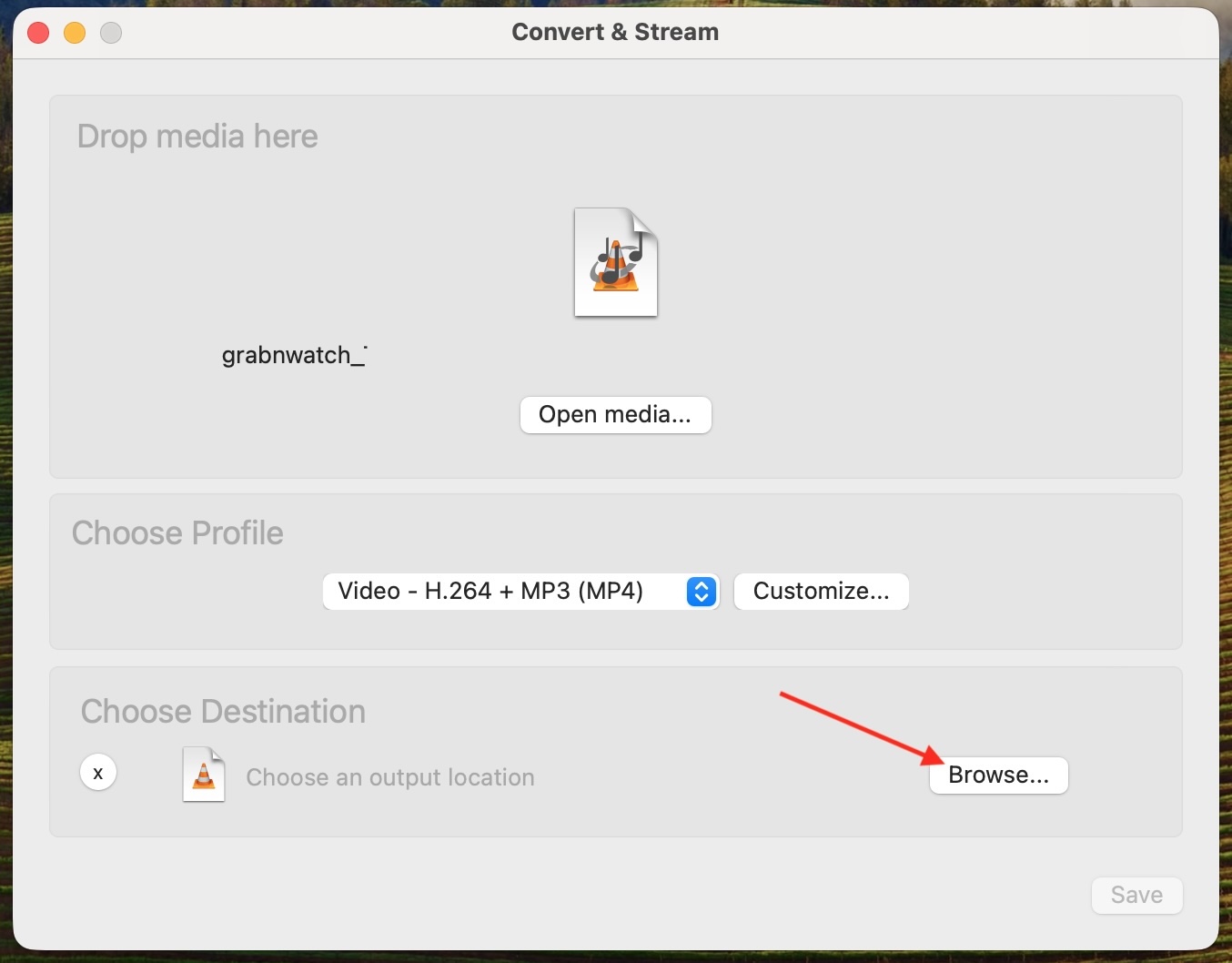
-
Choose a folder and file name. Then click Save.
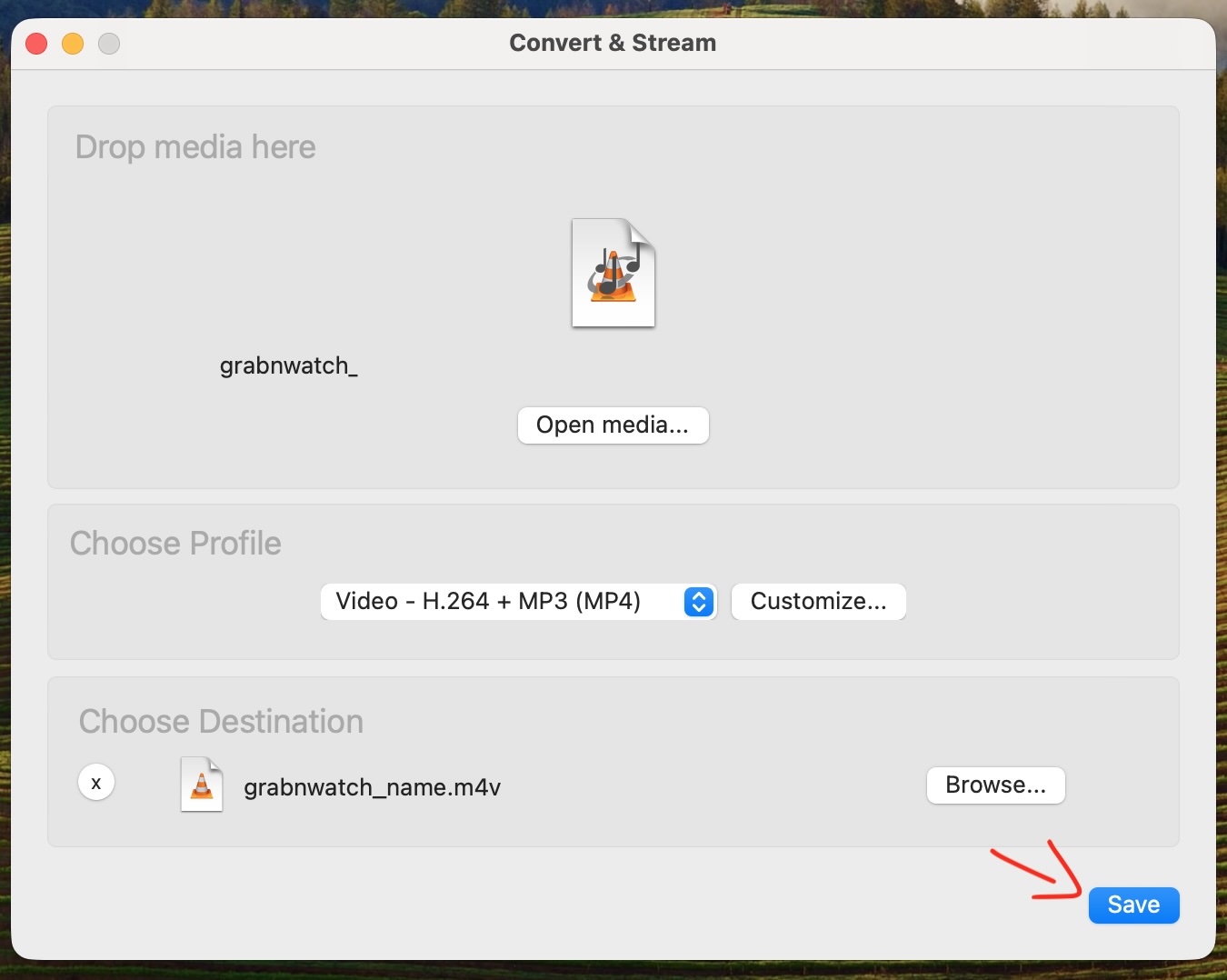
-
If VLC says the file already exists, click Overwrite. Skip this step if you do not see the message.
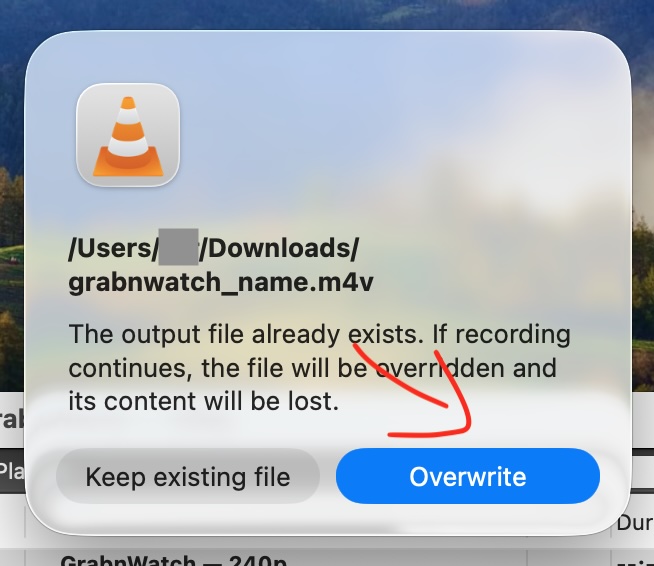
-
Wait until the progress bar reaches the end. Do not close VLC. Your video will be in the folder you chose.
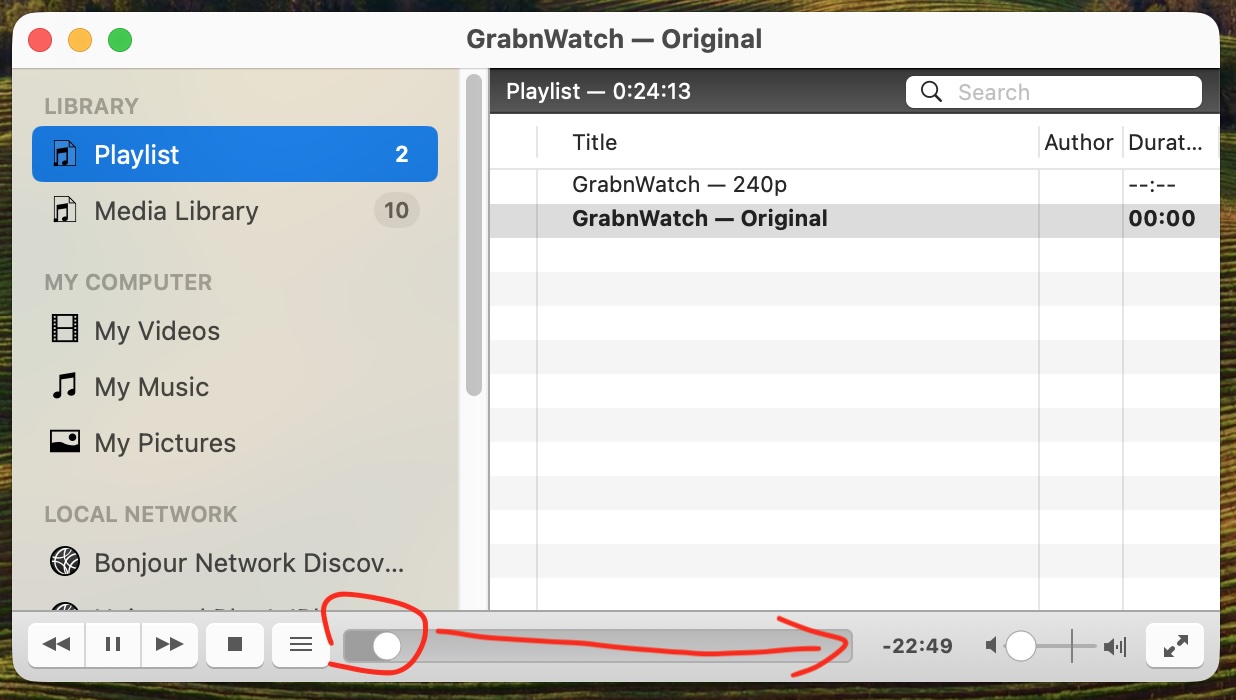
Android: first, get the app
Install the GrabnWatch Android app. Start the download from GrabnWatch.com.
Before you start
The app has no URL box. Open GrabnWatch.com on your Android phone and start there.
Save the video on Android
-
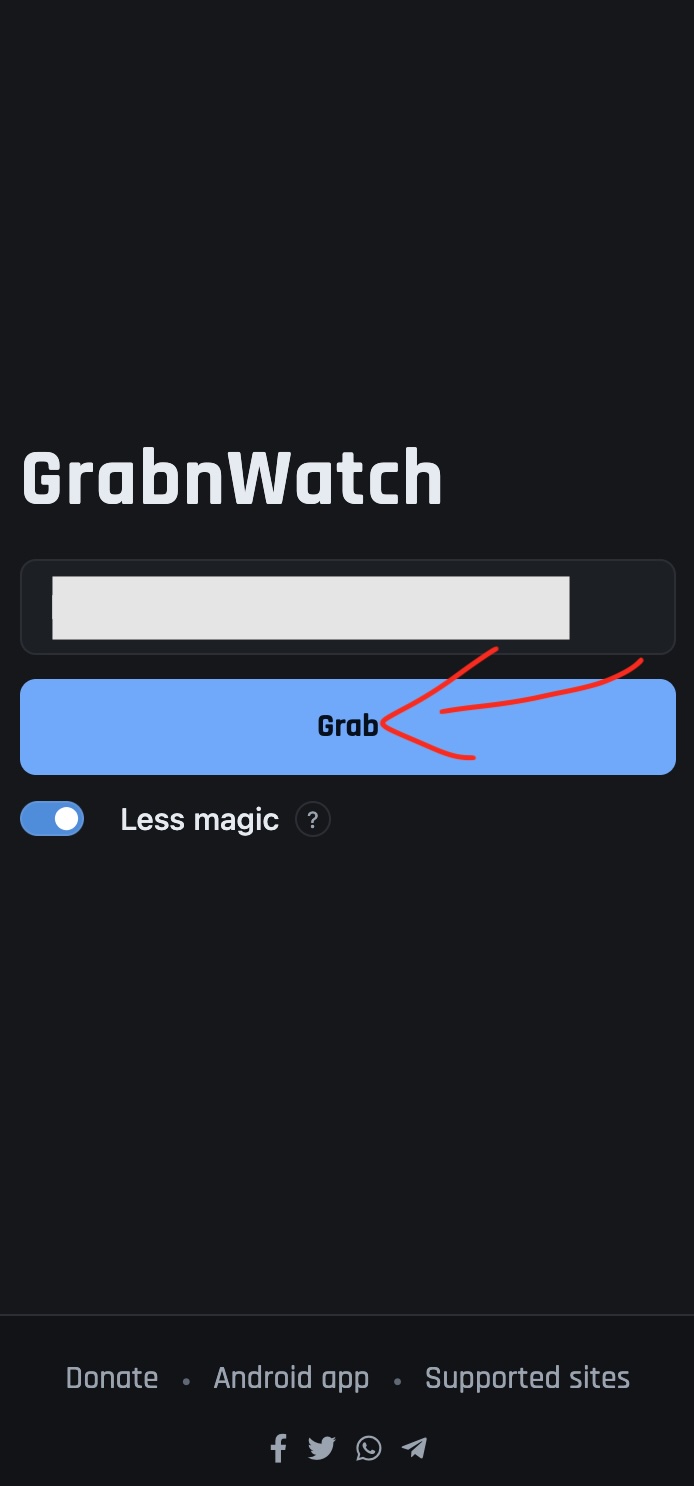
Paste the video page link into GrabnWatch.com. Tap Grab.
-
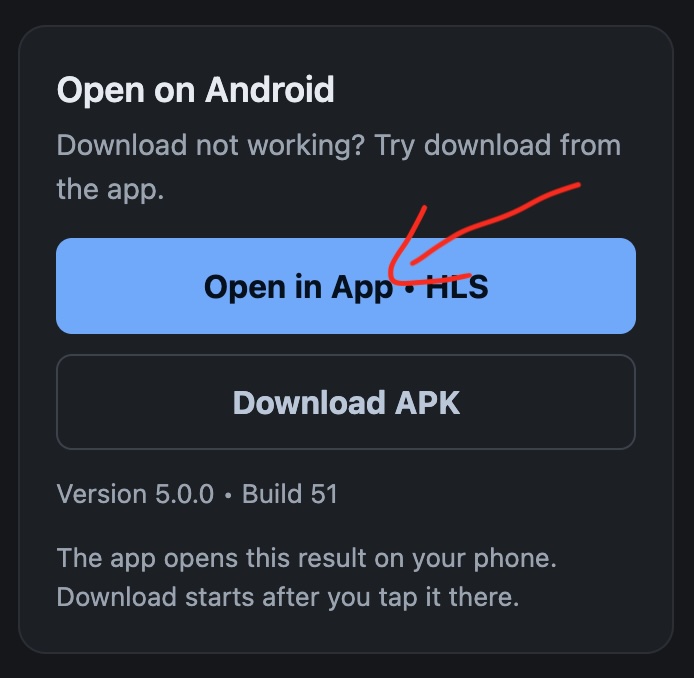
In the result, tap Open in App • HLS. If the app is not installed, tap Download APK first.
-
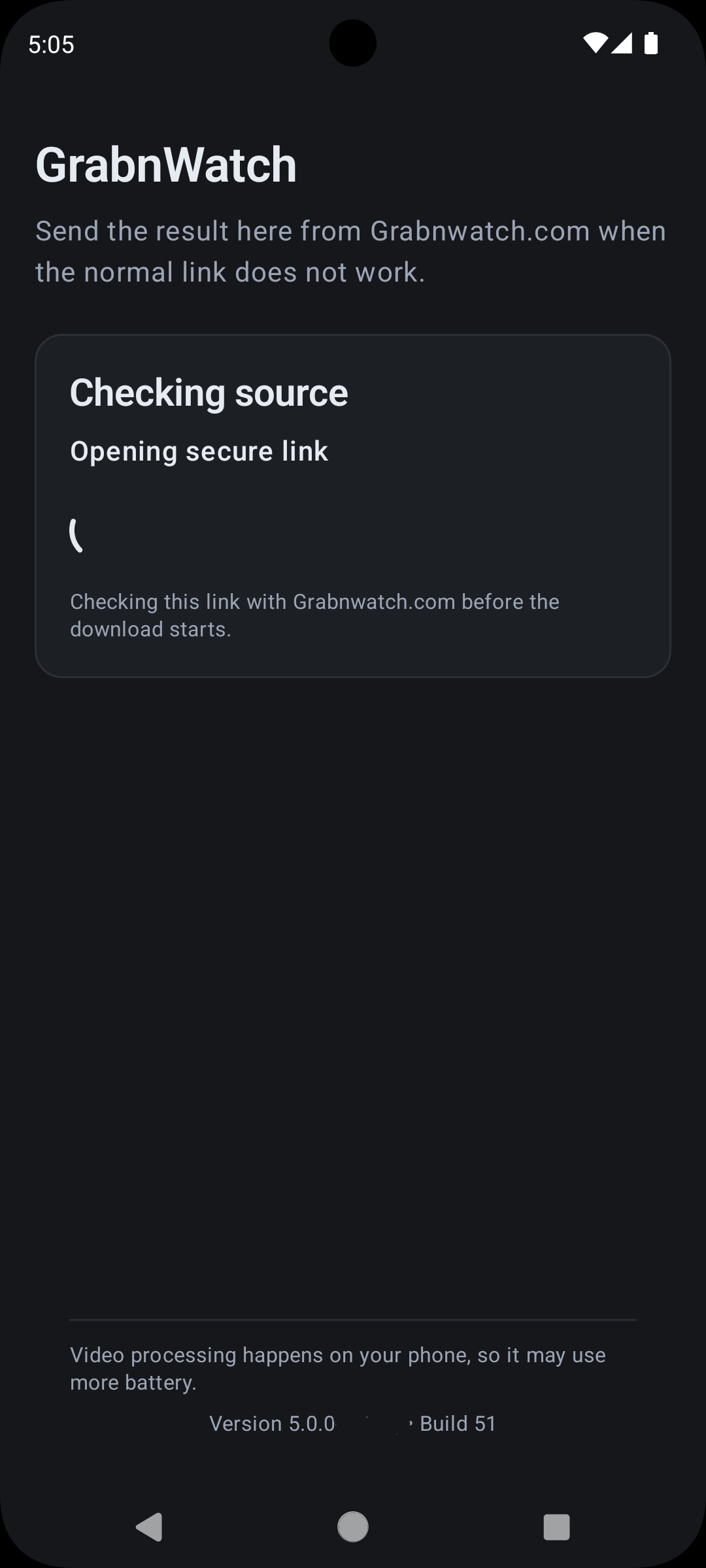
Wait while the app checks the link.
-
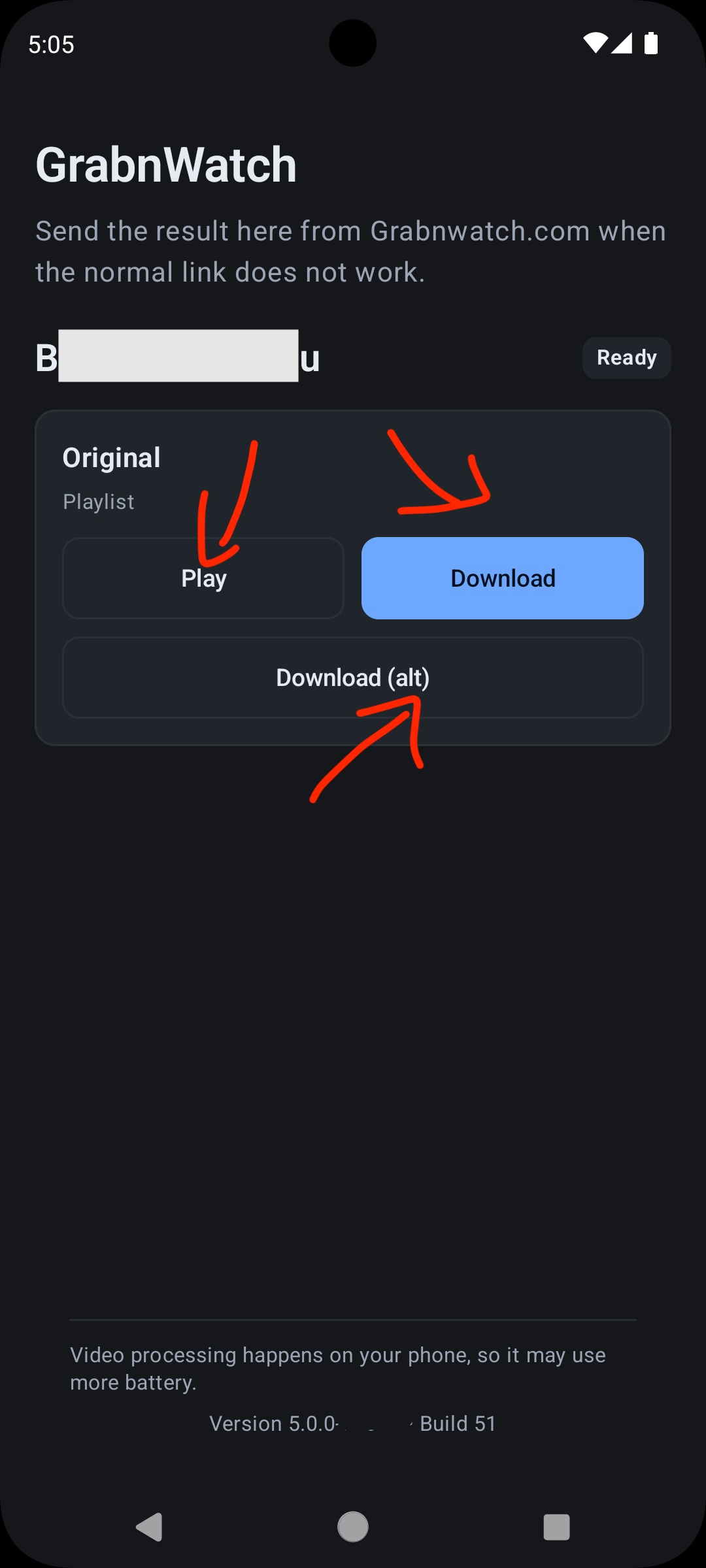
When the result is ready, tap Download. If it does not start, tap Download (alt). Use Play only if you want to watch the video first.
-
Wait while the notification says Downloading video... Do not tap Cancel.
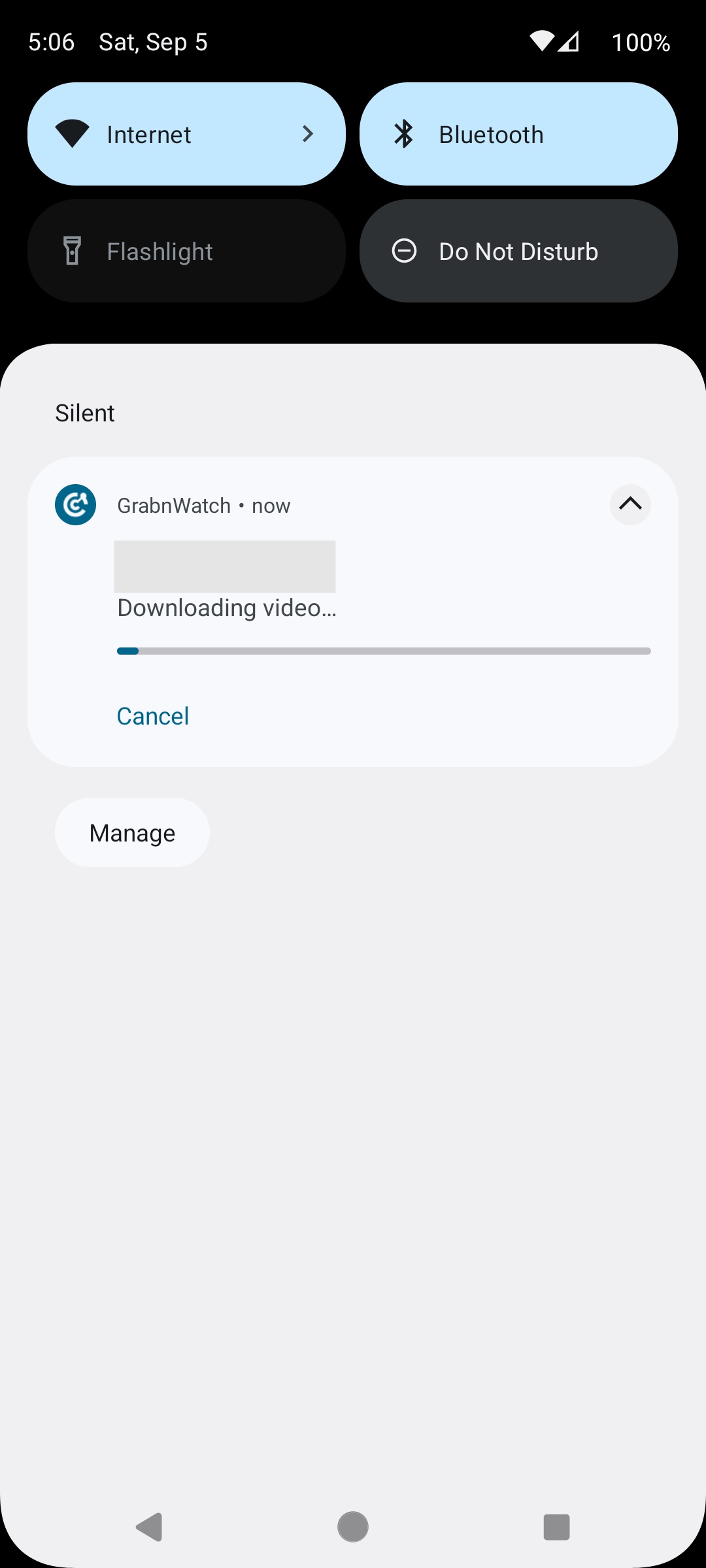
-
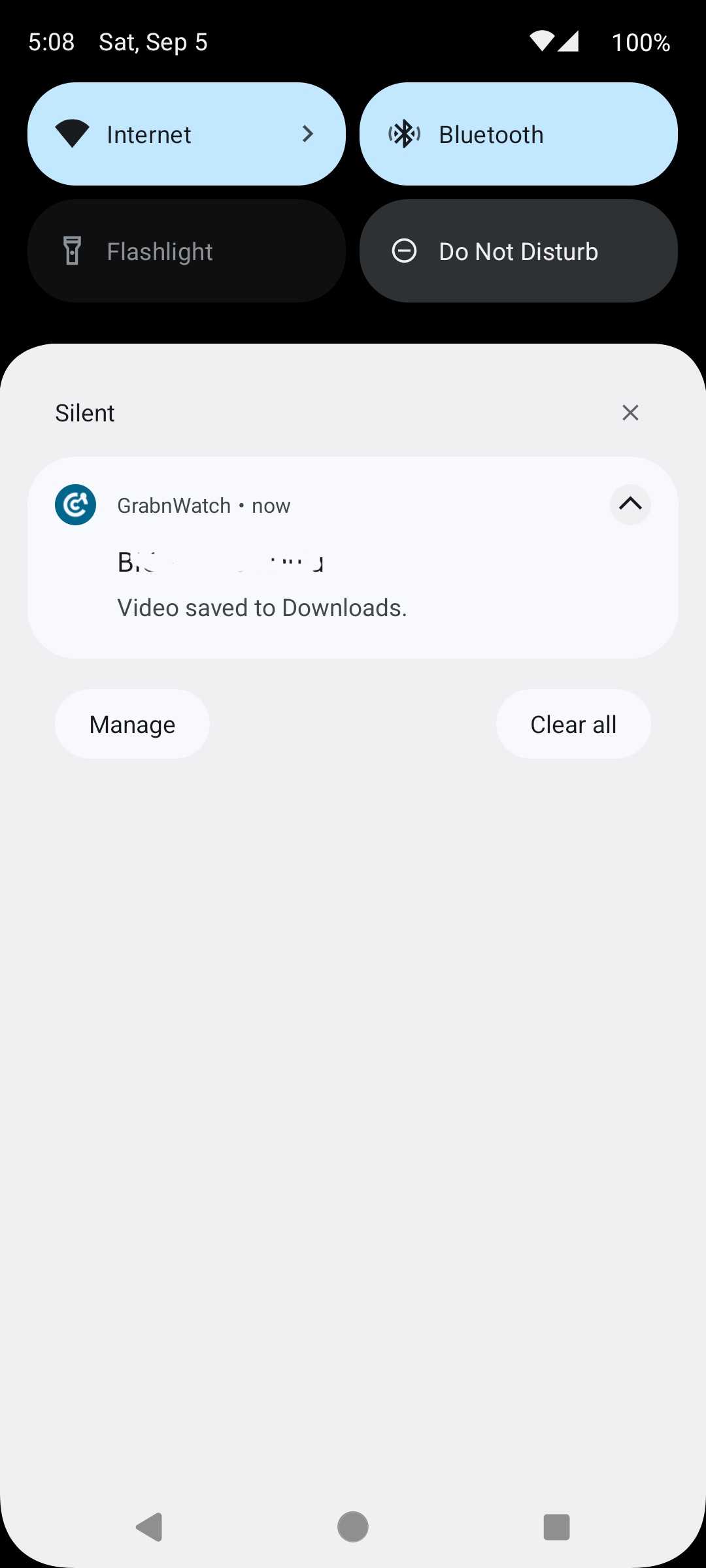
Wait for Video saved to Downloads. Your MP4 file is now in the Downloads folder.